One thing I’ve learned while building Small Biz Web Guide is that choosing a WordPress theme is about more than picking something that looks nice in a preview. A theme affects how visitors experience your website, including how easy it is to read articles, navigate pages, and use the site on a phone.
Since my website is focused on helping small-business owners understand website costs, hosting, domains, and ways to improve their online presence, I wanted something clean and professional without making everything complicated.
For this lesson, I compared three WordPress themes, selected one, and installed it on my actual website.
Where You Can Find WordPress Themes
There are several places to find themes for WordPress, but I think it’s important to know where a theme comes from before installing it.
WordPress.org Theme Directory
The official WordPress.org Themes directory was my first choice. It allows website owners to search for free themes, review their features, check compatibility, and see information about the developers.
I like this option because I can install themes directly from the WordPress dashboard without downloading files from an unfamiliar website.
Theme Developer Websites
Some companies offer themes directly through their own websites. They may provide free versions, paid versions, additional templates, or support packages.
I would still research the developer and compare what’s included before buying anything. A free theme might provide everything a small website needs, while certain advanced features could require an upgrade.
Third-Party Theme Marketplaces
There are also marketplaces that sell premium WordPress themes. These can provide specialized designs, but I would check the developer’s reputation, update history, support policies, licensing terms, and compatibility before purchasing one.
No matter where a theme comes from, I would avoid downloading modified or pirated premium themes from random websites. Saving a little money isn’t worth creating a security problem.
For this assignment, I stayed with free themes from the official WordPress.org directory.
Understanding WordPress Theme Files
Another thing I learned is that a WordPress theme isn’t just one design file. It contains files that tell WordPress how to display the website.
WordPress has two main theme structures: classic themes, which primarily use PHP templates, and block themes, which use HTML block templates.
For a basic standalone classic theme to function, the essential files are:
- style.css: Contains the theme’s identifying information and can include CSS that controls its appearance.
- index.php: The main fallback template WordPress uses when a more specific template isn’t available.
For a block theme, the essential files are style.css and templates/index.html, which provides the fallback block template.
Most real themes include more files than those minimum requirements.
Some common additional files are:
- functions.php: Adds theme functionality, registers features, and helps load styles or scripts.
- header.php and footer.php: Define reusable header and footer sections in classic themes.
- single.php: Controls how an individual blog post is displayed.
- page.php: Provides a template for regular website pages.
- archive.php: Controls listings of posts, such as categories or archives.
- comments.php: Handles the comments area in classic themes and is also part of WordPress.org’s classic-theme submission requirements.
- screenshot.png: Provides the theme preview image in the WordPress dashboard.
- theme.json: Defines global settings and styles, such as colors, typography, and layout options. It is commonly used in block themes but isn’t required for every theme.
- assets folders: Store supporting files such as CSS, JavaScript, fonts, and images.
I think understanding these files is useful even when you’re not building a theme from scratch. It helps explain why some changes can be made through WordPress settings while others require editing theme code.
Comparing Three WordPress Themes
Before choosing a theme, I created a decision matrix to compare three options:
1. Astra
Astra caught my attention because of its customization options, mobile-first design, and suitability for small-business websites. It looked like a good option if I wanted flexibility for future changes.
2. Generate Press
GeneratePress stood out because of its lightweight approach and focus on performance and usability. Since my website contains a lot of reading material, I liked the idea of keeping things simple.
3. Neve
Neve was the theme I eventually selected. Its official listing describes responsive layouts, customization options, blog support, and accessibility-ready features.
All three looked like reasonable choices. Instead of choosing based only on the example screenshots, I wanted to compare what would actually matter to my visitors.
What I Looked for in My Decision Matrix
I focused on five main criteria.
Mobile-friendly design: Small-business owners might visit my website from a phone instead of a desktop computer. I wanted a layout that adjusts to different screen sizes without making people zoom in or scroll sideways.
Customization: I plan to keep improving Small Biz Web Guide after the course ends, so I wanted control over the appearance without needing to rebuild the website every time I change something.
Blog readability: My site is primarily educational. Clear headings, readable paragraphs, and organized blog posts are more important to me than complicated animations.
Accessibility: I believe everyone should be able to use a website, including people who navigate differently or use assistive technology. That made accessibility an especially important part of my decision. A theme being labeled accessibility-ready is a useful starting point, although it doesn’t automatically make the finished website fully accessible.
Performance: I wanted to avoid a design that adds unnecessary complexity or slows down the website. I still need actual performance testing before claiming one theme is faster than another on my hosting setup.
I also considered cost. Since the website is still a school project, I didn’t see a reason to pay for theme features I don’t currently need.
Why I Chose Neve
After comparing the three themes, I decided that Neve was the best fit for Small Biz Web Guide.
It offered the combination of mobile support, blog layouts, customization, and accessibility considerations I was looking for.
I also wanted a theme that would let me keep my existing content. I’ve already spent time writing articles, organizing categories, creating images, and setting up my Home and Blog pages. I wasn’t interested in replacing all that work just to get a different-looking website.
Neve gave me a way to change the theme while keeping the content I’d already created.
How I Installed and Activated Neve
I installed Neve using the WordPress administration dashboard, not a manual FTP upload.
First, I opened Appearance → Themes → Add Theme and searched for Neve. I made sure to select the regular Neve theme instead of the separate Neve FSE theme.
After clicking Install, I kept my original Extendable theme active while I checked the Neve Live Preview.
Before making the switch, I also reviewed my UpdraftPlus backups. I had a recent full backup containing the database, themes, plugins, uploads, and other website files.
The preview let me inspect my existing homepage, navigation, articles, and mobile layout without immediately changing the live theme.
One issue I noticed during the mobile preview was that my UserWay accessibility button overlapped the mobile menu’s close button. I went into UserWay’s settings, moved its button to the bottom-left corner, and checked the mobile preview again.
That’s a good example of why I think previewing a theme is worth the extra effort. Something can look perfectly fine on a desktop and still have a usability issue on a smaller screen.
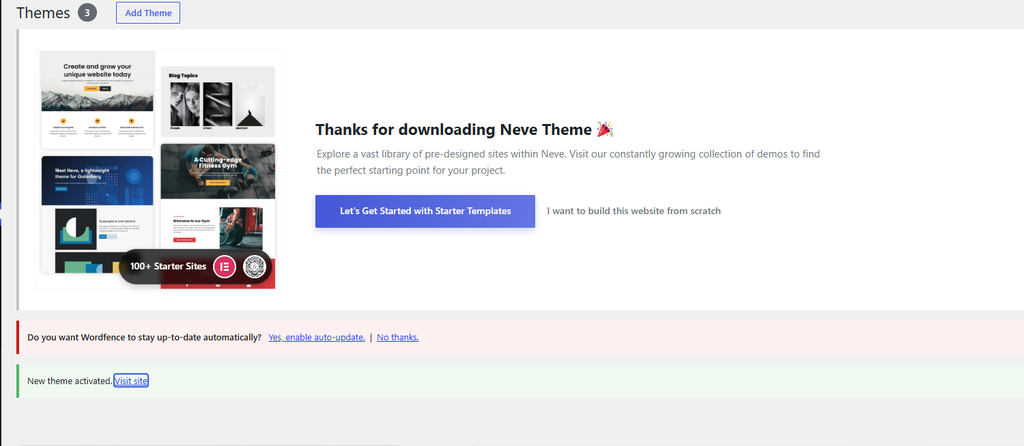
Once the previews looked good, I clicked Activate & Publish. WordPress confirmed that the new theme was activated successfully.
Neve also offered starter templates, but I skipped those because I wanted to preserve my existing website instead of importing a demonstration layout.
I didn’t have to manually upload theme files, purchase an upgrade, or install a starter website.

What I Learned From This Lesson
My biggest takeaway is that choosing a theme should start with what the website needs, not just what looks impressive.
A business selling products might need a completely different layout from a website that mostly publishes articles. For Small Biz Web Guide, I want visitors to find information quickly, read it comfortably, and understand their options before spending money.
I’m happy with choosing Neve because it fits those goals and gives me room to keep improving the website.
I also learned that installing a theme is the easy part. The important part is making sure the design still works with the pages, navigation, images, plugins, and visitors who depend on it.
For me, that was the real lesson: pick the theme that works for your website, not the one with the fanciest demo.
References
Brainstorm Force. (n.d.). Astra. WordPress.org. https://wordpress.org/themes/astra/
Themeisle. (n.d.). Neve. WordPress.org. https://wordpress.org/themes/neve/
Tom. (n.d.). GeneratePress. WordPress.org. https://wordpress.org/themes/generatepress/
WordPress.org. (n.d.). Theme structure. WordPress Developer Resources. https://developer.wordpress.org/themes/core-concepts/theme-structure/
WordPress.org. (n.d.). Organizing theme files. WordPress Developer Resources. https://developer.wordpress.org/themes/classic-themes/basics/organizing-theme-files/
WordPress.org. (n.d.). Work with themes. https://wordpress.org/documentation/article/work-with-themes/