One thing I’ve learned while building Small Biz Web Guide is that website security is something you should think about from the beginning, not after something goes wrong. A website might look great and work perfectly, but that doesn’t mean it’s protected from someone trying to break into it.
For a small business, your website represents your business online. If someone gains unauthorized access, they could change your content, steal information, or cause problems for your customers. That’s why I think having a secure website is just as important as having one that looks professional.
In this lesson, I worked on securing my WordPress website, setting up user accounts, and understanding why different people should have different levels of access.
Three Ways I Improved My Website Security
1. Setting Up and Verifying SSL

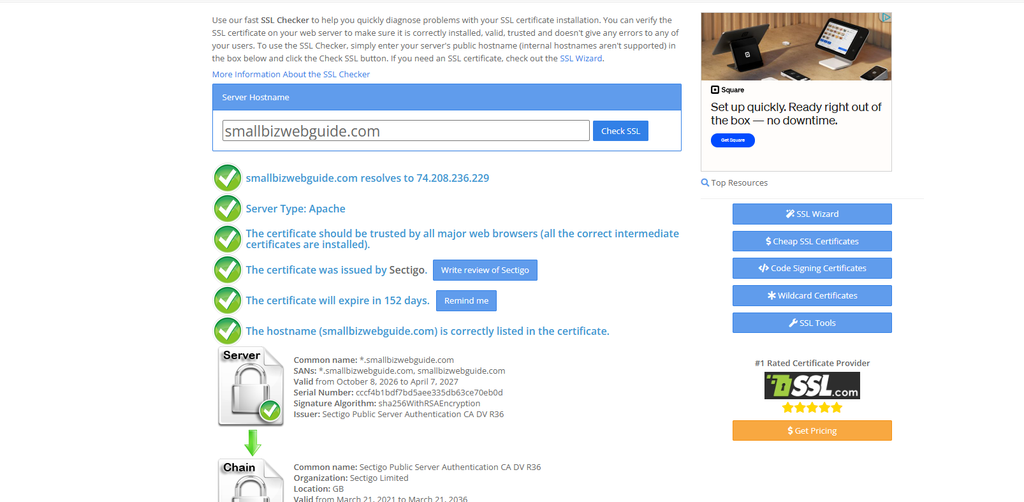
The first thing I checked was my SSL certificate through IONOS. My hosting package already included an SSL Starter Wildcard certificate, so I didn’t need to purchase another one.
I used SSL Shopper to check my website and received green checkmarks confirming the certificate was trusted, valid, and matched my domain. I also verified that my WordPress website addresses use HTTPS.
HTTPS helps protect information traveling between a visitor’s browser and a website by encrypting the connection (Mozilla, n.d.). It doesn’t solve every security problem, but it’s an important starting point.
I also installed Really Simple Security and activated its SSL configuration. This gave me another opportunity to review the website’s security settings.
2. Installing Security and Monitoring Plugins
The second thing I did was install and configure security plugins from the official WordPress plugin directory.
I installed Wordfence Security and registered for its free license. Wordfence provides firewall and malware-scanning features, which can help website owners identify and respond to suspicious activity.
I also installed WP Activity Log because I wanted a way to review changes happening on the website. I configured basic activity logging with three months of retention. Having a history of administrative activity can be helpful when troubleshooting or figuring out what changed.
Finally, I installed Login LockDown to add protection against repeated failed login attempts.
One thing I noticed is that security plugins can have overlapping features. Installing more plugins doesn’t automatically make a website safer. I still need to understand what each one does and make sure the settings work together.
I also believe regular updates and reliable backups are important. WordPress recommends keeping plugins updated and maintaining a recovery plan in case something goes wrong (WordPress.org, n.d.).
3. Creating Separate User Accounts and Permissions
The third security improvement was creating separate WordPress users instead of giving everyone an Administrator account.
Before this lesson, I already understood the importance of permissions from working with websites and software. What I found interesting was seeing how WordPress has those permissions organized into built-in user roles.
I created four fictional team members for this assignment and assigned each person a different role. I also created a domain email address through IONOS for the Editor account.
The biggest benefit is that people can work on the website without having access to settings or features they don’t actually need.
How I Would Use WordPress User Roles
WordPress provides several user roles, each with different capabilities (WordPress.org, n.d.). Here is how I would use the five roles for Small Biz Web Guide.
Administrator Myself
As the website owner, I would handle hosting, security, plugins, website settings, backups, and user management. The Administrator has the highest level of access on my single WordPress site, so I wouldn’t hand out this role unless there was a very good reason.
Editor Jordan Reed
I created Jordan as my fictional Editor. An Editor can review, edit, and publish content, including posts written by other users. If Small Biz Web Guide eventually has multiple writers, this person could help keep the articles organized and ready for publication.
Author Avery Collins
An Author can write, edit, and publish their own posts. I would use this role for someone contributing regular articles who doesn’t need access to the website’s plugins, security settings, or other users’ content.
Contributor Taylor Morgan
A Contributor can write and edit their own posts but cannot publish them. I think this is a useful role for guest writers because their content can be reviewed before it goes live.
Subscriber Casey Parker
A Subscriber has very limited access and can mainly manage their own profile. I could see this being useful if I eventually added a reader account or membership feature, although I haven’t added those features to this website.
What I Took Away From This Lesson
I think the biggest thing I learned is that website security isn’t just about installing a firewall or seeing a padlock in the browser.
It’s also about maintaining your software, protecting your login information, monitoring changes, and making sure users only have access to what they need.
Building Small Biz Web Guide has been a good opportunity to practice these things on an actual website. My goal is to keep improving the site after the class ends, and I want to build those improvements on a secure foundation.
I still have some security settings and integration issues to review, so I don’t consider the work completely finished. But I have a much better understanding of how the different pieces fit together.
References
Mozilla. (n.d.). Transport Layer Security (TLS). MDN Web Docs. https://developer.mozilla.org/en-US/docs/Web/Security/Defenses/Transport_Layer_Security
WordPress.org. (n.d.). Hardening WordPress. WordPress Developer Resources. https://developer.wordpress.org/advanced-administration/security/hardening/
WordPress.org. (n.d.). Roles and capabilities. https://wordpress.org/documentation/article/roles-and-capabilities/